 unkre
MODEL GUIDE
Qwen Image 2.1. Your next creative direction.
Create AI images with Qwen Image 2.1 in UNKRE. Use text prompts, reference photos and compatible LoRAs to explore ultra-realistic SFW and NSFW images.
Start with a prompt or a reference photo
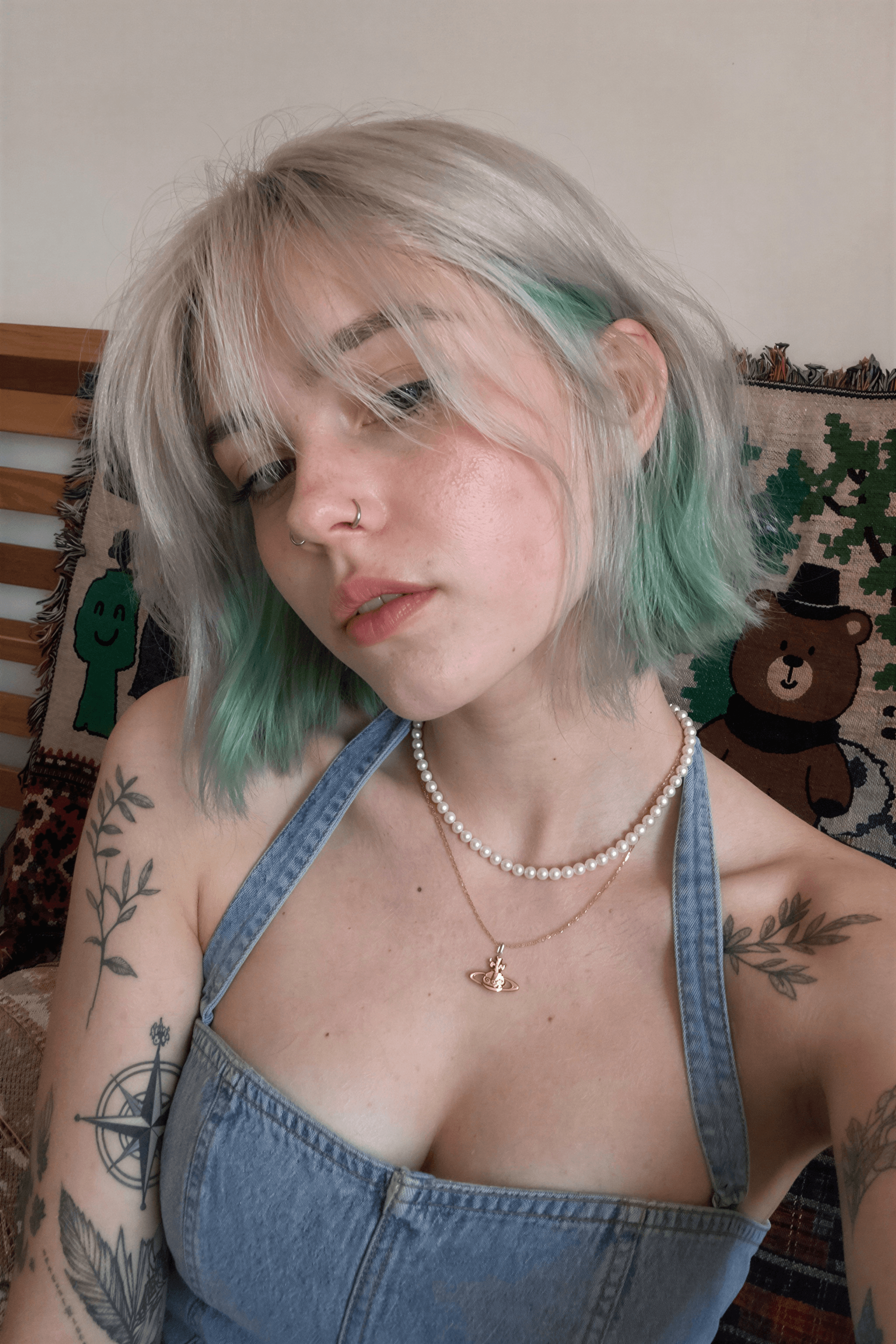
Qwen Image 2.1 is available in UNKRE alongside Krea 2. You can start with a text description or add a reference photo to give the model a visual starting point. The reference workflow is useful when you want to explore a new scene around a person’s appearance.
Choose Qwen in Studio, write the image you want to create, and optionally upload your reference. Think about the subject, light, clothing, setting and mood. A focused description gives you a clearer starting point than a list of unrelated styles.
Explore ultra-realistic SFW and NSFW images
Use the photographic examples on the landing page to explore natural lighting, texture and composition. SFW and NSFW creation is available. The reference examples show a starting photo and a generated scene, with an optional adult example on the same landing page.
An example shows what is possible; it does not guarantee the same face, pose or level of detail for every generation. Try one change at a time when developing a look.
Choose a compatible Qwen LoRA
The LoRA options in Studio depend on your selected model. Explore the compatible Qwen collection, choose one option and adjust its strength. A LoRA intended for a different model is not automatically interchangeable.
Continue in Studio
Sign in with Google or Telegram to access the available workflow catalog, generate images and find results in your account gallery. The Create with Qwen link keeps your model choice through sign-in. Current workflow availability is shown inside Studio.